
5 Best Practices of Using Zoom Backgrounds


Video conferencing is now a staple of professional communication, and how you present yourself on camera matters more than ever. Platforms like Zoom have made it easy to connect—but also more important to look polished while doing it.
One of the most overlooked ways to improve your on-camera presence is by using the right Zoom background. Whether you're meeting with clients, colleagues, or partners, a thoughtful background can instantly elevate your professionalism, reinforce your brand, and eliminate distractions.
Below are five best practices to help you get the most out of your Zoom background—plus expert tips to look your best on every call.

Why a Professional Zoom Background Matters for Video Calls
First impressions count—even in virtual meetings. A cluttered room, poor lighting, or distracting visuals can take attention away from your message.
A professional Zoom background helps you:
Maintain a clean, distraction-free environment
Present a consistent and polished image
Build credibility and trust with clients and colleagues
Align your visual presence with your brand
Think of your Zoom background as part of your overall professional appearance—it should work for you, not against you.

Best Zoom Backgrounds to Look Professional on Camera
Before diving into best practices, choosing the right background style is key to success.
Choose Clean, Minimalist Office Backgrounds
Modern office settings or simple home office scenes create a polished and credible look.

Use Neutral Colors for Better Video Quality
Soft grays, whites, and warm tones prevent harsh contrast and keep attention on you.

Avoid Busy or Distracting Designs
Complex patterns or bright visuals can pull focus away from your presentation.

Use Branded Backgrounds for Client-Facing Calls
Subtle logos can reinforce your identity without overwhelming the frame.

1. How to Choose a Clean and Professional Zoom Background
The best Zoom backgrounds for work are simple, tidy, and distraction-free. Whether you choose a virtual office, blurred background, or neutral wall, simplicity is key.
Avoid overly personal or cluttered visuals. Instead, opt for backgrounds that enhance your professionalism without stealing focus.
2. Use Custom Logo Zoom Backgrounds for Branding
If you’re representing a business, adding your logo to your Zoom background is a powerful branding move.
Custom logo backgrounds are ideal for:
Client presentations
Sales calls and demos
They subtly reinforce your brand while keeping your setup clean and consistent.

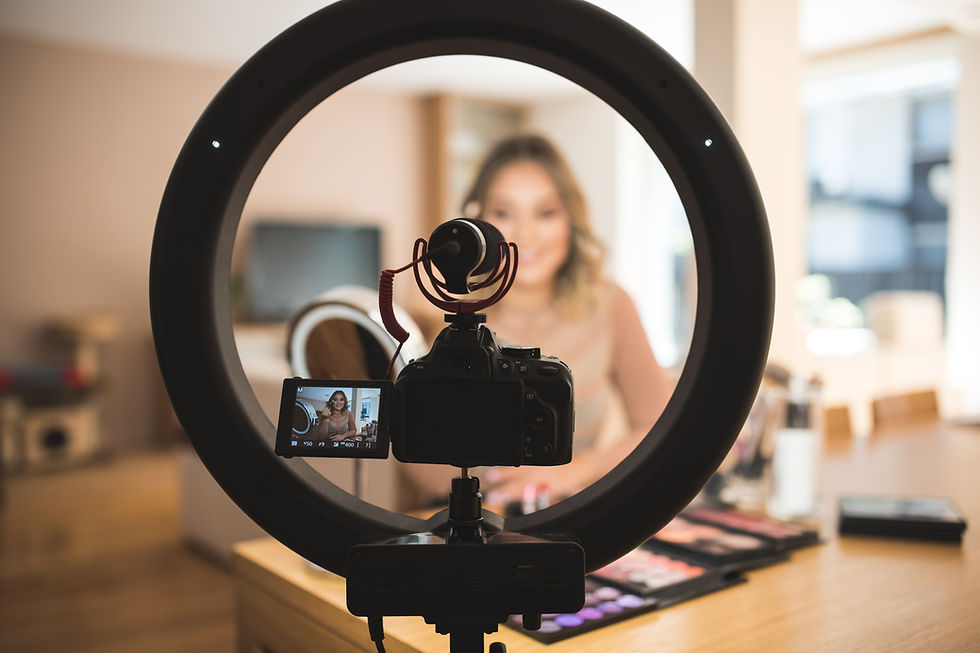
3. Improve Your Zoom Lighting and Camera Setup
Even the best Zoom background won’t look right without proper lighting and positioning.
Use Front-Facing Lighting
Natural light or a ring light placed in front of you helps eliminate shadows and improves clarity.
Position Your Camera at Eye Level
Keep your camera centered and slightly above eye level for the most flattering angle.
Maintain Proper Distance
Sit about 2–3 feet from your camera so your background frames you naturally.
Lighting and camera setup are just as important as your background when it comes to looking professional on Zoom.
4. Match Your Zoom Background to Your Industry
Your background should reflect your role and audience.
Corporate/Finance → Clean office or conference room
Creative Fields → Modern or design-forward spaces
Healthcare/Education → Neutral, calming environments
Aligning your background with your industry helps create a cohesive and credible presence.

5. Avoid Distracting Colors, Patterns, and Text
Bright colors, busy designs, or large text elements can distract viewers and reduce video quality.
To keep your setup professional:
Avoid neon or overly saturated colors
Skip complex patterns or textures
Keep logos or text subtle and minimal
Simple backgrounds always perform best on camera.
Tips to Make Your Zoom Background Look More Realistic
Want your background to look seamless instead of artificial? Follow these quick tips:
Use even lighting to improve edge detection
Avoid wearing colors that blend into your background
Test your setup before important meetings
Use a high-quality webcam for better clarity

FAQs: Best Zoom Backgrounds for Work and Video Calls
What is the best Zoom background for professional meetings?
Clean office environments, neutral tones, and subtle branded backgrounds work best for professional settings.
Do Zoom backgrounds really make a difference?
Yes—they improve professionalism, reduce distractions, and help you make a better impression.
Can I use a logo in my Zoom background?
Absolutely. Branded backgrounds are great for client calls and presentations when used subtly.
Why does my Zoom background look fake or glitchy?
Poor lighting, low-resolution images, or lack of contrast can cause flickering or “halo”
effects.
What colors should I avoid in Zoom backgrounds?
Avoid bright whites, neon colors, and busy patterns that can distract or affect camera exposure.
How can I look better on Zoom calls?
Use front-facing lighting, choose a clean background, position your camera properly, and wear solid, neutral colors.
Upgrade Your Zoom Background for a More Professional Presence
A well-chosen Zoom background can instantly elevate your appearance, reinforce your brand, and eliminate distractions during meetings.
By following these five best practices—and choosing high-quality, professional backgrounds—you’ll not only look better on camera, but also communicate more effectively.
Looking to level up your setup? Custom Virtual Office offers professionally designed, branded Zoom backgrounds tailored to your industry—so you can show up confidently on every call.


