
Fixing Blurry Virtual Backgrounds on Zoom and Microsoft Teams

Updated: Mar 30

Virtual backgrounds have become a staple of modern remote work, helping professionals maintain a polished and distraction-free environment during video calls. However, one of the most common frustrations users face is a blurry virtual background on Zoom and Microsoft Teams. Instead of looking sharp and professional, the background appears pixelated, distorted, or poorly blended with your silhouette.
If your virtual office setup isn’t looking as crisp as you’d like, don’t worry—there are several simple fixes that can dramatically improve your results.

Why Virtual Backgrounds Look Blurry
Before diving into solutions, it’s important to understand why this happens. Both Zoom and Microsoft Teams rely on AI-powered background segmentation to separate you from your surroundings. When conditions aren’t ideal, the software struggles to render clean edges and high-quality visuals.
Common causes include:
Low-resolution images
Poor lighting conditions
Weak camera quality
Lack of contrast between you and your background
Insufficient system performance
Once you identify the issue, fixing it becomes much easier.

Use High-Resolution Background Images
One of the biggest mistakes people make is uploading low-quality images. If your background file is small or compressed, it will appear blurry when stretched across your screen.
For best results:
Use images that are at least 1920 x 1080 pixels (Full HD)
Avoid screenshots or heavily compressed JPEGs
Choose sharp, professionally designed backgrounds
Custom Virtual Office offers high-resolution virtual office backgrounds specifically optimized for Zoom and Teams, ensuring your image remains crisp even on larger displays.

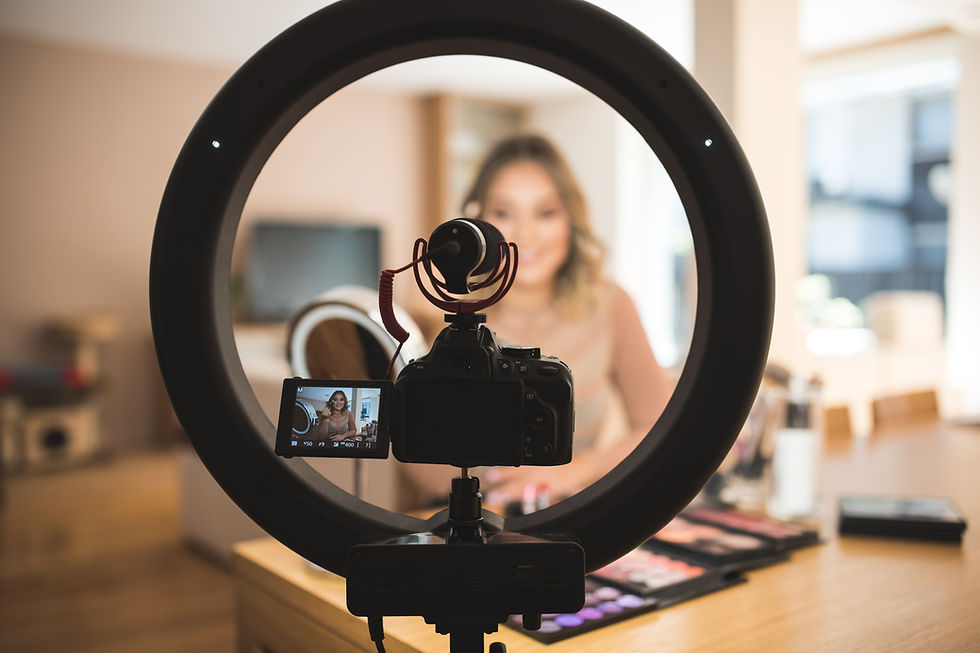
Improve Your Lighting Setup
Lighting plays a major role in how well your virtual background renders. If your face or body is poorly lit, the software has a harder time distinguishing you from the background.
To fix this:
Position a light source in front of you (natural light works great)
Avoid strong backlighting (like windows behind you)
Use soft, even lighting to reduce shadows
Better lighting helps the software create cleaner edges, reducing that blurry “halo” effect around your body.
Upgrade Your Camera Quality
If you’re using an older or low-resolution webcam, your entire video feed—including your background—will suffer.
Consider:
Using a 1080p HD webcam or higher
Cleaning your camera lens (this is often overlooked)
Adjusting camera settings for clarity and brightness
A sharper video input allows Zoom and Teams to process your image more accurately, resulting in a clearer virtual background.
Create Contrast Between You and the Background
Another key factor is contrast. If you’re wearing colors similar to your background, the software may struggle to separate you from it.
For better results:
Wear colors that stand out from your background
Avoid busy patterns or textures
Choose backgrounds with depth (not flat, single-color walls)
For example, if your background is light and airy (like a spring office scene), wearing darker tones can help improve edge detection.
Enable HD Video Settings
Both Zoom and Microsoft Teams have settings that impact video quality.
In Zoom:
Go to Settings > Video
Enable HD video (if available)
In Microsoft Teams:
Ensure your device supports high-quality video
Close unnecessary apps to free up system resources
Higher video quality allows for better background rendering and reduces blurriness.
Use a Green Screen for Best Results
If you want the sharpest possible virtual background, a green screen is the gold standard. While not required, it significantly improves how software detects edges.
Cleaner separation between you and the background
Reduced flickering or distortion
More consistent results across different lighting conditions
Even a simple, affordable green backdrop can make a huge difference in achieving a professional look.

Check Your Internet and System Performance
Blurry backgrounds aren’t always about visuals—sometimes it’s a performance issue.
If your internet connection or computer is struggling:
Video quality may be reduced automatically
Background processing may lag or degrade
To optimize performance:
Close unused applications
Use a stable, high-speed internet connection
Restart your system before important meetings
This ensures your device can handle real-time background rendering without compromising quality.
Choose Backgrounds Designed for Video Calls
Not all images are created equal. Some backgrounds may look great as photos but perform poorly in video calls due to lack of depth or poor composition.
Look for backgrounds that:
Include natural depth (foreground, midground, background)
Are optimized for virtual use

Custom-designed virtual office backgrounds for Zoom and Teams are specifically created to avoid these issues, giving you a more realistic and professional appearance.
A blurry virtual background can undermine an otherwise professional video call—but it’s usually an easy fix. By improving your lighting, upgrading your camera, using high-resolution images, and optimizing your settings, you can dramatically enhance your on-screen presence.
Whether you’re presenting to clients, interviewing for a job, or collaborating with your team, a sharp and polished virtual background helps you look more confident and credible.
With the right setup and a high-quality background from Custom Virtual Office, you can eliminate blurriness for good—and make every meeting look as professional as it should.


